Let’s face it: Default Minecraft looks a bit flat. The lighting is dull, the water is just a blue block, and the shadows are non-existent. You want that gorgeous, RTX-style look you see on YouTube, but you’re terrified of turning your PC into a space heater.
For years, OptiFine was the only game in town. But in 2026, there is a new king: Iris Shaders.
Why is everyone switching? It’s simple. Iris is a modern, open-source shader engine that works hand-in-hand with Sodium (the world’s best optimization mod). This combo doesn’t just make your game look incredible; it often doubles or triples your FPS compared to Vanilla.
If you want to run high-end shaders like Complementary or BSL without the lag, you need Iris. Here is your definitive guide on how to install Iris Shaders.
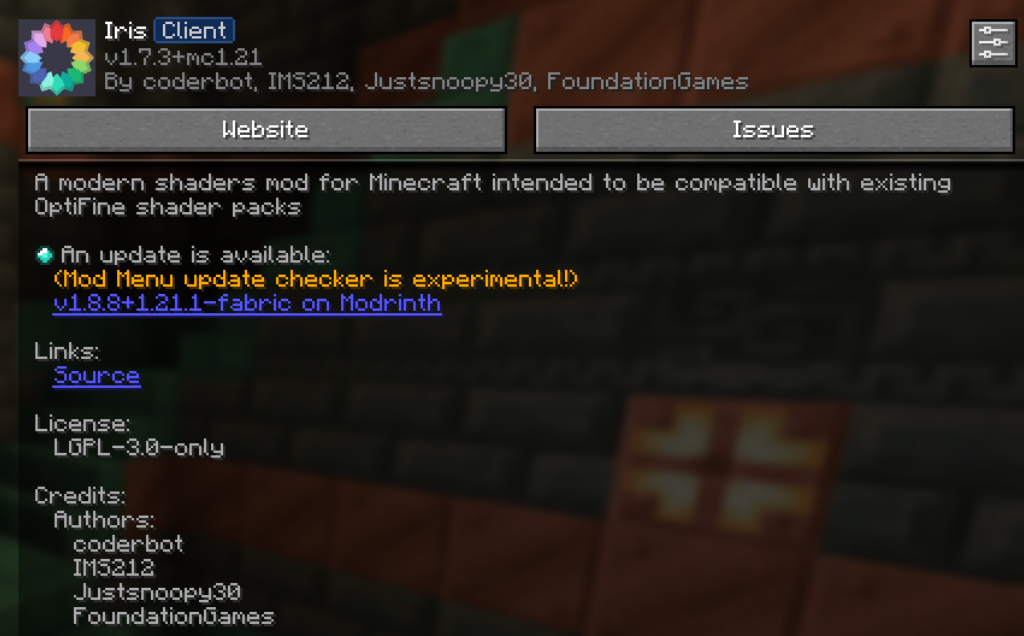
Best for: 90% of players who just want to play.
Requirements: Just Java.
The team behind Iris created a brilliant “Universal Installer” that does all the heavy lifting for you. It installs the Fabric Loader, Iris, and Sodium all at once.
Get the Installer: Scroll to the bottom of this page to find the Official Iris Download link (irisshaders.dev).
Run the File: Double-click the .jar file you just downloaded.
Choose Your Edition:
Ensure “Iris” is selected.
Select your Game Version (e.g., 1.21.x).
Crucial: Make sure the “Install Sodium” box is checked. Sodium is the magic sauce that gives you the performance boost.
Install: Click the big button. In a few seconds, it will confirm installation.
Launch: Open your Minecraft Launcher. You will see a new profile named “Iris & Sodium”. Select it and hit Play!
Iris is fully compatible with Java Edition versions from 1.14 up to the latest 1.21.x
Best for: Players who already have Fabric installed and want to add Shaders to their existing mod list (e.g., with Minimaps or Inventory Sorters).
If you followed our How to Install Fabric Guide, this is the method for you.
Prerequisites: Make sure you have the Fabric Loader and Fabric API installed in your .minecraft/mods folder.
Download the Mods: Go to Modrinth or CurseForge and download two specific files:
Iris Shaders (The visual engine)
Sodium (The performance engine)
The Drop: Navigate to your %appdata%/.minecraft/mods folder.
Install: Drag and drop both .jar files into this folder.
Restart: Launch your game using your existing Fabric profile.

I have used OptiFine for a decade, but in 2026, Iris is objectively superior for modern hardware.
The Pros: It updates lightning-fast (usually same-day as Minecraft updates), it uses the Fabric ecosystem, and the FPS gain from Sodium is unmatched.
The Cons: It is strictly a visual mod. It does not include “Zoom” or “Connected Textures” (glass fusing together) out of the box.
Fix: If you need Zoom, install the Zoomify mod.
Fix: If you need Connected Textures, install the Continuity mod.
Iris Shaders is developed by the Iris Team.
Sodium is developed by JellySquid and the Sodium Team.
AnvilPacks.com is an independent resource and is not affiliated with Mojang Studios.
Q: Where is the Zoom button (C key)? A: Iris is lightweight and doesn’t include feature bloat. To get the Zoom feature back, simply download a mod called Zoomify or Logical Zoom and put it in your mods folder.
Q: Can I use Iris with Forge/NeoForge? A: Not directly. However, there is a port of Iris for Forge called Oculus. It works almost exactly the same way!
Q: Why is my screen black or glitching? A: This usually happens if you are using an extremely old shader pack on a new version of Minecraft, or if your Graphics Drivers are outdated. Update your GPU drivers and try a modern pack like Complementary.

XRay Texture Pack
Fresh Animations Texture Pack
Bare Bones Texture Pack
Visible Ores Texture Pack

1.21.X Texture Packs
1.20.X Texture Packs
1.19.X Texture Packs
1.18.X Texture Packs

8x Texture Packs

16x Texture Packs

32x Texture Packs

64x Texture Packs

128x Texture Packs

256x Texture Packs

512x Texture Packs